Journal
Record and track your therapeutic journey with a comprehensive daily journaling system that organizes life events, therapy progress, and personal reflections.
What is the Journal?
The Journal feature provides a timeline-based diary that helps you document various aspects of your therapeutic journey. Track appointments, homework assignments, new skills learned, medication changes, and free-form reflections—all organized by date in one unified view.
Accessing the Journal
- Open Bifocal and navigate to the Journal section
- Tap the menu icon in the top-left toolbar
- Select "Journal" from the dropdown menu (marked with a checkmark when active)
The menu also provides quick access to Your Goals and Cope-Aheads—all part of your integrated journaling experience.
Calendar Strip Navigation
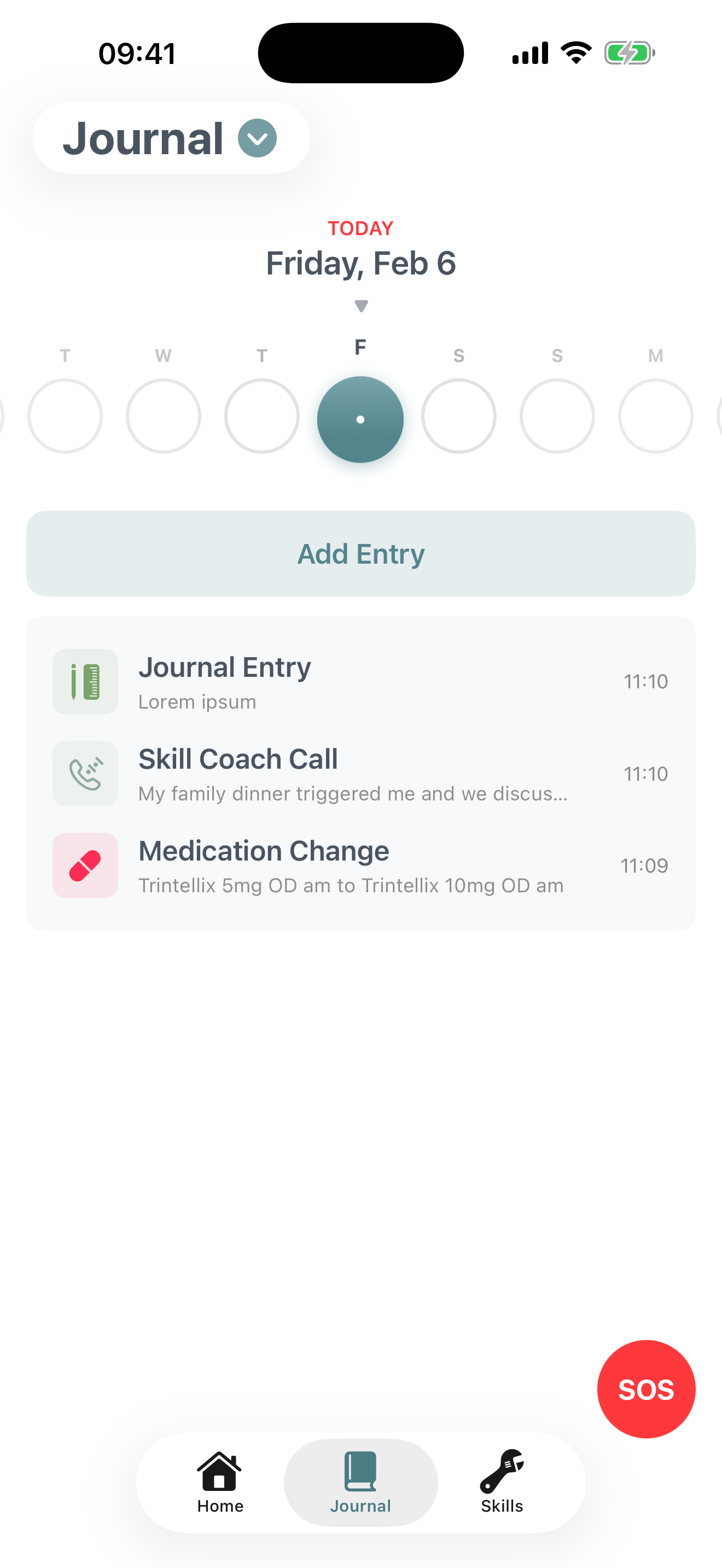
The Journal features an interactive "Infinity Pool" calendar strip for easy date navigation:
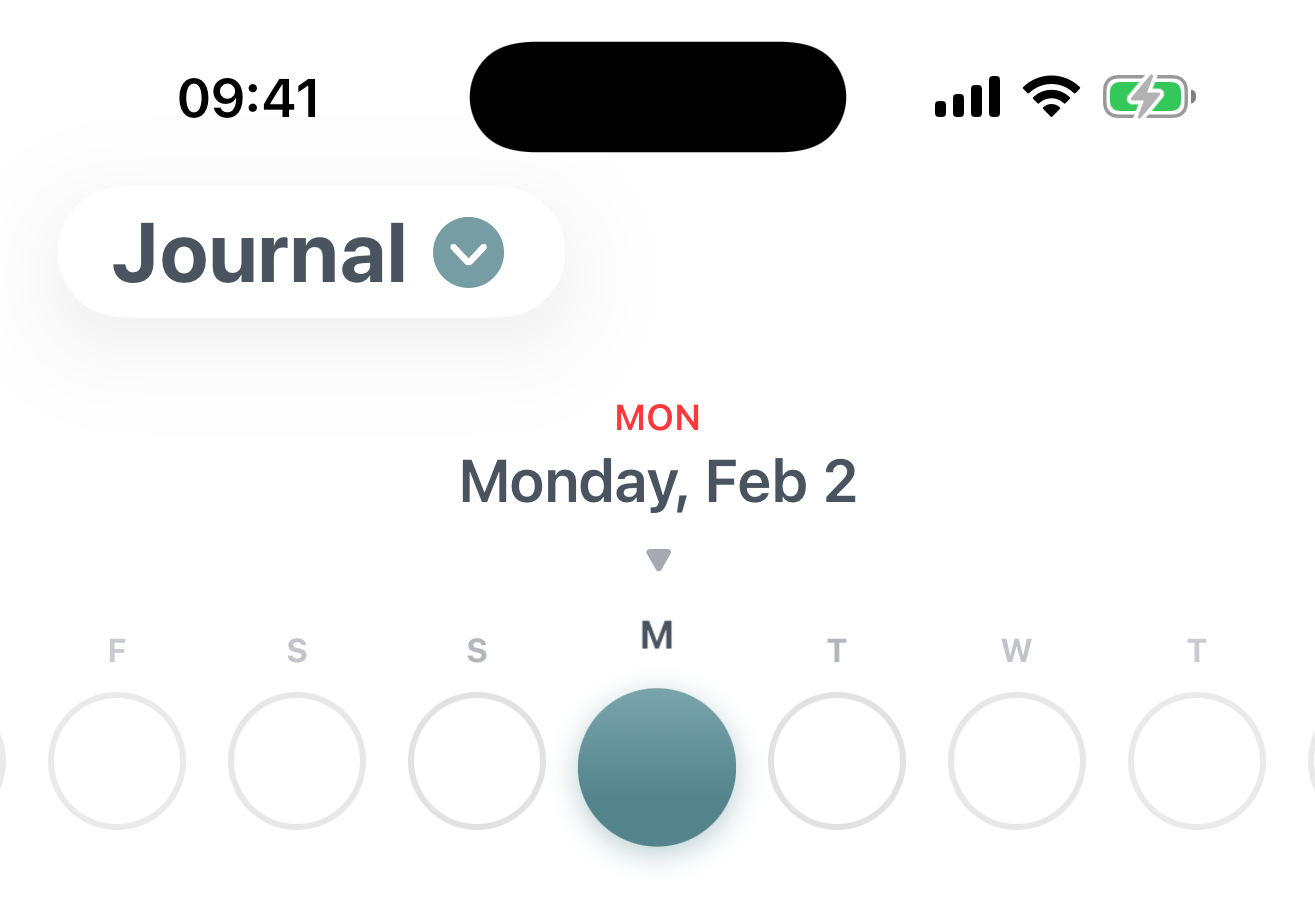
- Horizontal scrolling: Swipe left or right to browse ±30 days from today
- Today's marker: A small dot appears under today's date
- Selected date: Highlighted in the brand accent color and slightly larger
- Day labels: Abbreviated day names (M, T, W, etc.) appear above each date
- Smooth animations: Dates center-scroll and snap with spring animations
The selected date appears at the top with "Today" or the day name (in red) followed by the full date.
Creating Journal Entries
To add a new journal entry for the selected date:
- Tap the "Add Entry" button
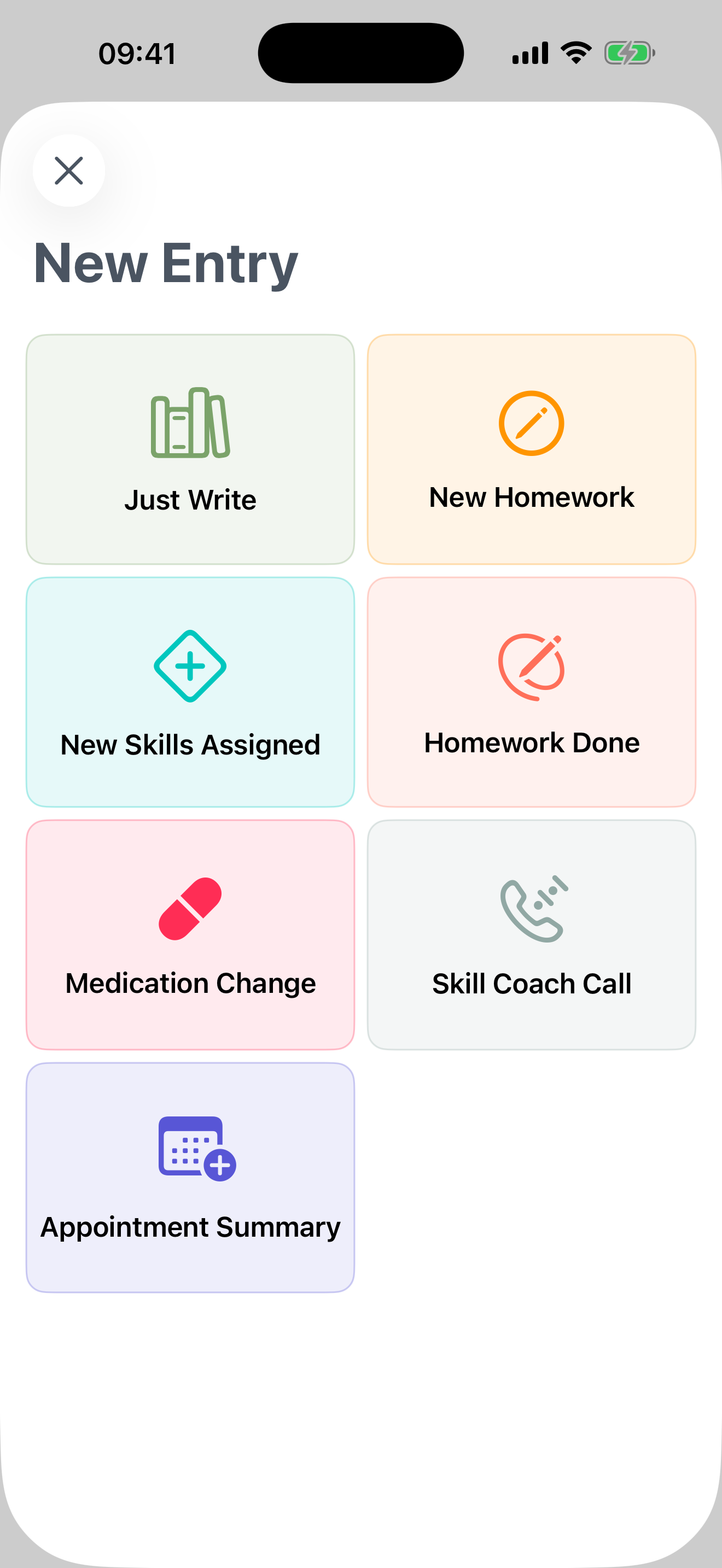
- Choose from eight different entry types, each with a unique icon and color
- Fill in the text field with your entry content
- For "New Skills Assigned" entries, select which skills you learned
- Tap the checkmark to save (enabled only when text is entered)
📱 Free vs Pro
Free: Add entries for today only
Bifocal Pro: Add retrospective entries for past dates to catch up or fill in missed days
Journal Entry Types
Choose the entry type that best matches what you want to record:
Just Write
Purpose: Free-form journaling for any thoughts or reflections
"Write whatever comes to mind"—perfect for general reflection, stream-of-consciousness writing, or anything that doesn't fit another category.
Color: Light purple (LWL accent)
Appointment Summary
Purpose: Document therapy sessions and what happened
"Describe what happened in your session"—record key takeaways, breakthroughs, or topics discussed with your therapist.
Color: Appointment accent
New Homework
Purpose: Log newly assigned homework from therapy
"Describe any non-skills homework here"—track assignments like journaling prompts, reflection questions, or behavioral experiments.
Color: Homework accent
Homework Done
Purpose: Celebrate completed homework assignments
"Describe the task you completed"—document what you accomplished and any insights gained.
Color: Homework Done accent
New Skills Assigned
Purpose: Record when you learn new therapeutic skills
Select from your available skills list to mark which ones were taught or introduced. Skills are organized by category and displayed in a two-column grid.
Color: New Skills accent
Special feature: Tap skills to select/deselect them for this entry
Medication Change
Purpose: Track changes to your medication regimen
"Write what you were originally taking and what it changed to"—important for monitoring how medication adjustments affect your wellbeing.
Color: Medication accent
Skill Coach Call
Purpose: Document coaching calls with your therapist
"Describe your coaching call with your therapist"—track guidance received during skills coaching sessions.
Color: Coaching accent
Viewing Your Journal Timeline
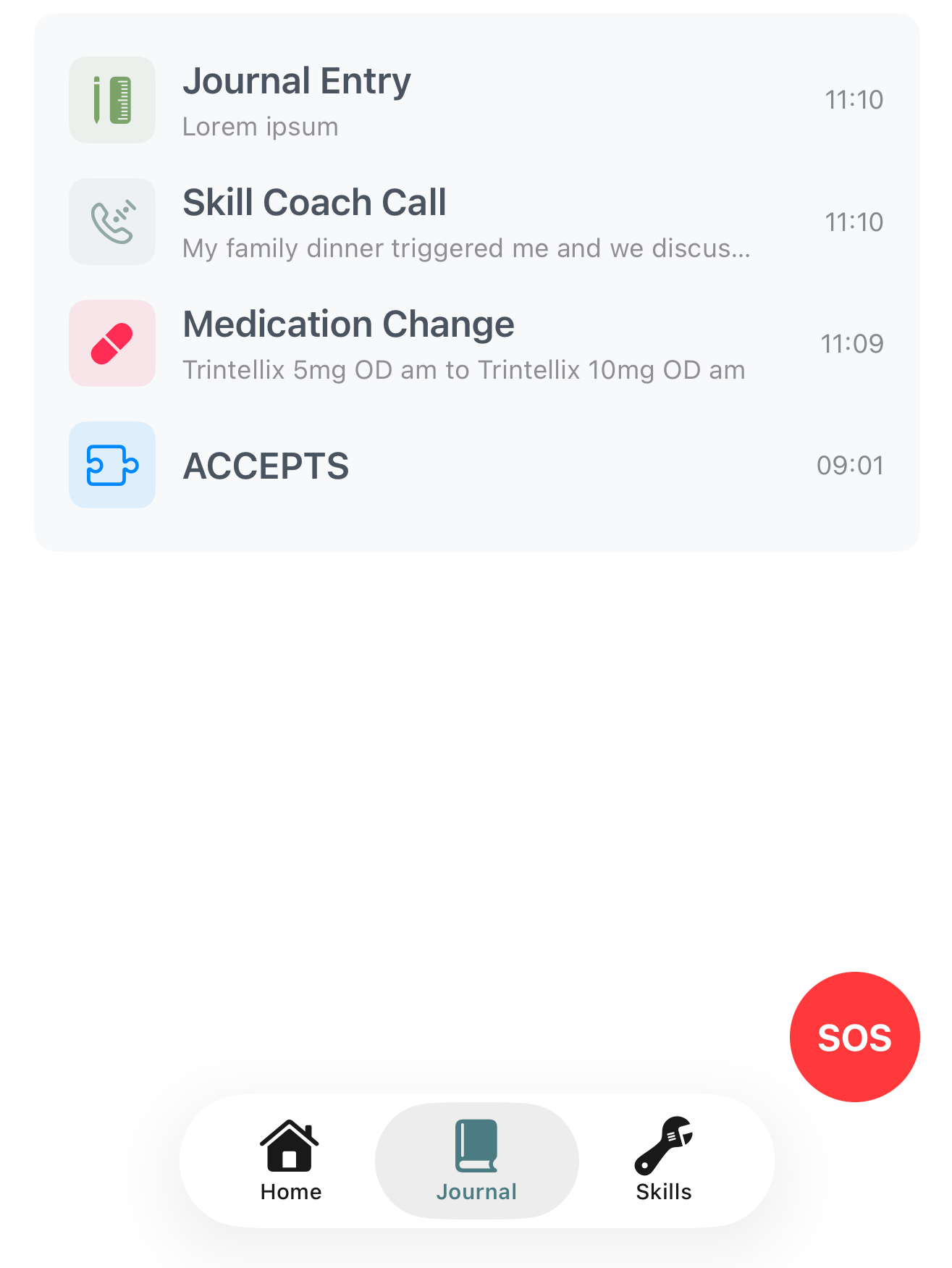
Each day's entries are displayed as a scrollable timeline showing:
- Diary card completions with purple icons
- Skill logs with blue icons
- Journal entries color-coded by type
Entries are sorted with the newest first. Each entry displays:
- Type icon and colored badge
- Entry title (based on type)
- Preview text (truncated to 1-2 lines)
- Timestamp (or "Retrospect" for past entries added today)
Reading Full Entries
To view the complete details of any entry:
- Tap any entry in the timeline
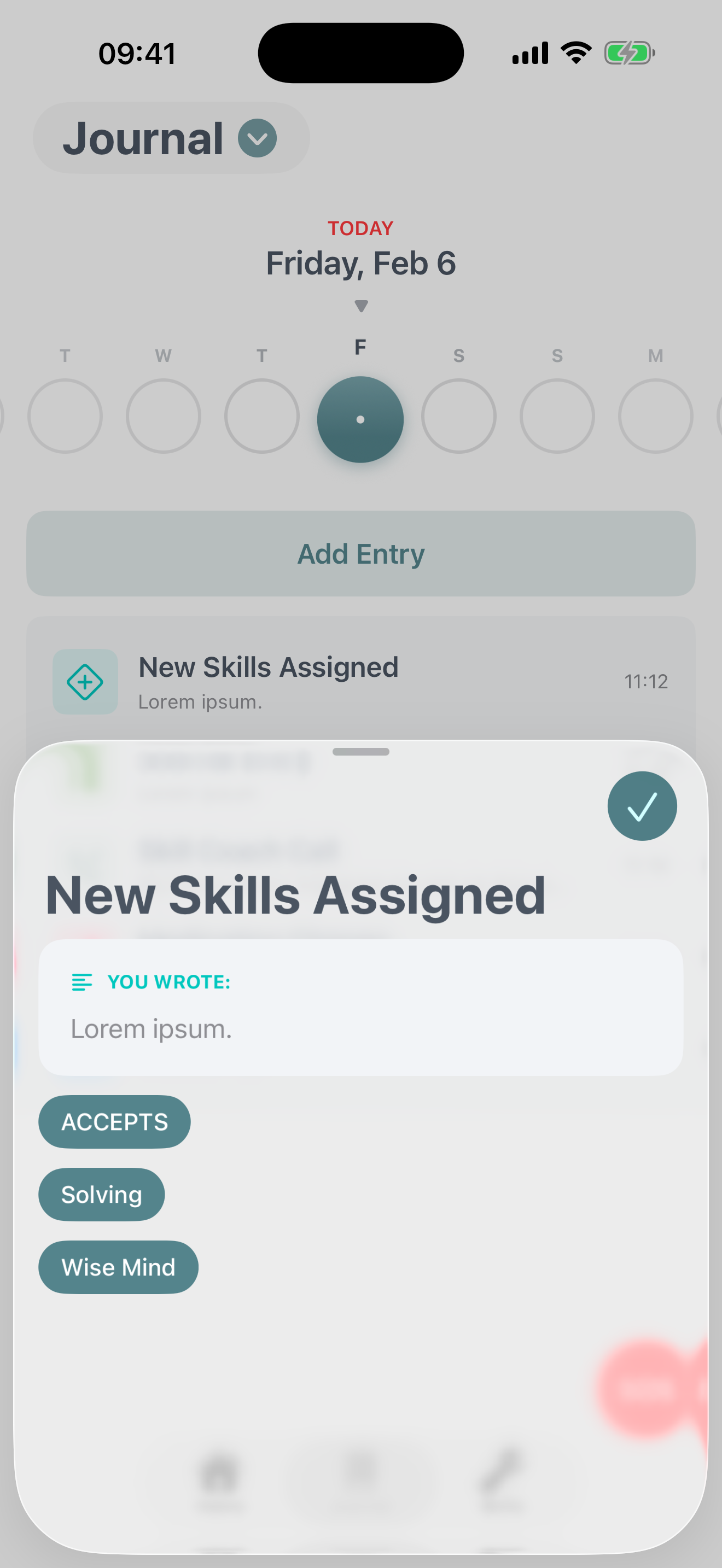
- A detail sheet opens showing:
- Full text content with "You wrote:" header
- Associated skills (if applicable) displayed as pills
- Creation timestamp with date and time
- For retrospective entries: "Created on [date] at [time]" marker
Managing Entries
To delete an entry:
- Long-press on any entry in the timeline
- Select "Delete" from the context menu
- Confirm the deletion
Empty State Messages
Past Days with No Entries
If you select a past date with no recorded entries, you'll see: "Nothing was recorded for this day!" with a question mark icon.
Free users cannot add retrospective entries. Pro users can tap "Add Entry" to fill in the day.
Future Dates
If you scroll to a future date, you'll see: "This day hasn't happened yet!" with an exclamation icon.
The "Add Entry" button is disabled for future dates—even for Pro users.
Tips for Effective Journaling
Journal Right After Sessions
Capture appointment summaries and new homework immediately after therapy while the details are fresh in your mind.
Use the Right Entry Type
Choosing the appropriate entry type helps you organize and find information later. Color-coding makes patterns easier to spot.
Review Regularly
Scroll back through your journal timeline to identify patterns in your therapeutic progress and reflect on growth.
Be Honest and Detailed
The more specific you are in your entries, the more valuable they become as reference material for future therapy sessions.
Link Skills to Entries
When logging "New Skills Assigned," take a moment to select all relevant skills. This creates connections for later review.
Your Privacy and Data
🔒 Secure Storage
All journal entries are stored locally on your device and in your encrypted iCloud (if enabled). Bifocal cannot access your journal.
📱 Device-Only Access
Your journal is private and only accessible on your device. No one else can read your entries unless you share your device.
🗑️ Full Control
Delete individual entries at any time via the context menu, or wipe all journal data from Data Management settings.